
SSL (Secure Sockets Layer) encrypts the connection between your website and your visitors, ensuring that all data is transmitted securely over HTTPS. If your domain is hosted on our cPanel hosting, you can install a free Let's Encrypt SSL certificate directly from your cPanel account.
Estimated Time: 2–5 minutes
Requirements:
- Your domain must point to the hosting server.
- DNS records should be fully propagated.
- The website must be hosted in your cPanel account.
Log in to your cPanel account using the credentials provided in your hosting welcome email.
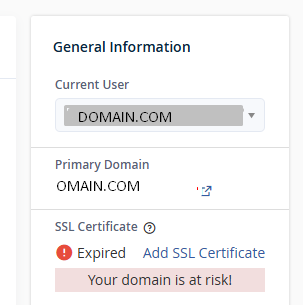
On the right-hand side of your cPanel dashboard, locate the General Information section.
If your SSL certificate has expired or is not installed, you will see a message similar to:
This indicates that your website is currently not protected by HTTPS.
From the cPanel home page:
Security → SSL/TLS Status, or at right hand side column of your cPanel reffer following image.
Select the domain from drop down and then click on the "Add SSL certificate" link
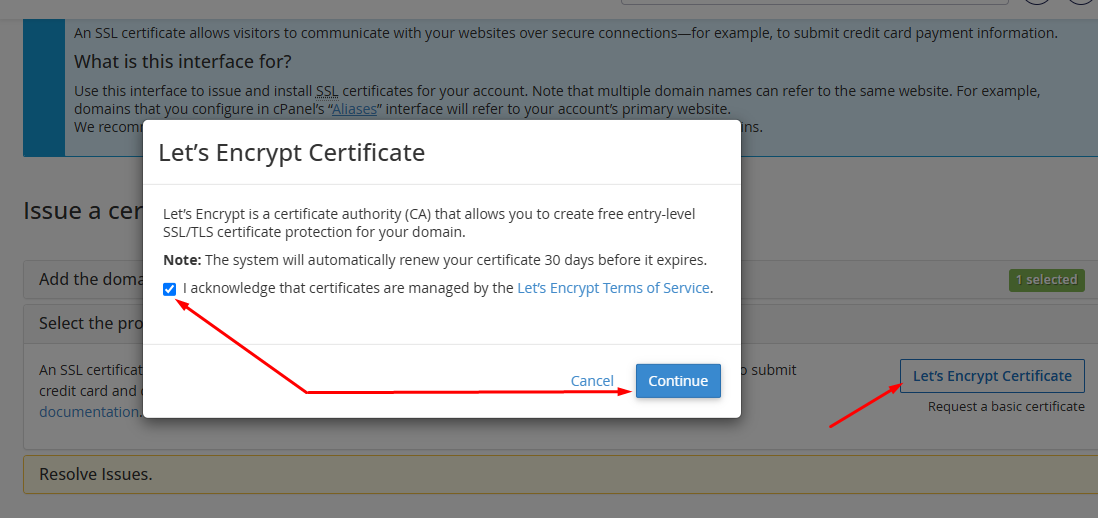
Click the Let's Encrypt Certificate button.
A confirmation window will appear.
Check the box:
✓ I acknowledge that certificates are managed by the Let's Encrypt Terms of Service
Tick the check box next to domain.com, mail.domain.com www.domain.com or *.domain.com and the installation will start
The installation process typically takes between 30 seconds and 5 minutes.
Once completed, the status will change to indicate that the SSL certificate has been successfully installed.
Open your website in a web browser using:
https://yourdomain.comYou should see:
Possible reasons include:
Common causes include:
Wait a few minutes and try again. If the issue persists, contact support.
If the SSL certificate has been installed successfully but the browser still reports "Not Secure":